
CertPanel offers multi-factor authentication using email-based authentication, or trusted third-party mobile apps, such as Google, Microsoft, Okta, and more.
Multi-Factor Authentication is Required
Multi-factor Authentication is strictly enforced for account security, and cannot be disabled.
If you do not have any MFA setting enabled, you will be required to login with email-based authentication using your account email address.
We recommend adding a custom MFA setting on your account.
How to Setup Multi-Factor Authentication
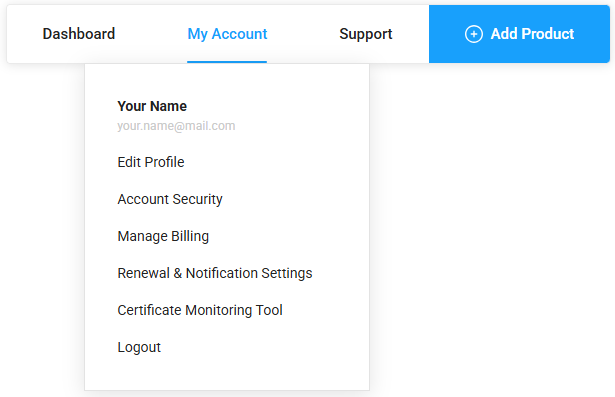
Locate the My Account menu at the top of the page. In the drop-down, click Account Security.
On the Account Access Control page, under Multi-Factor Authentication, click Setup to setup your preferred MFA device.
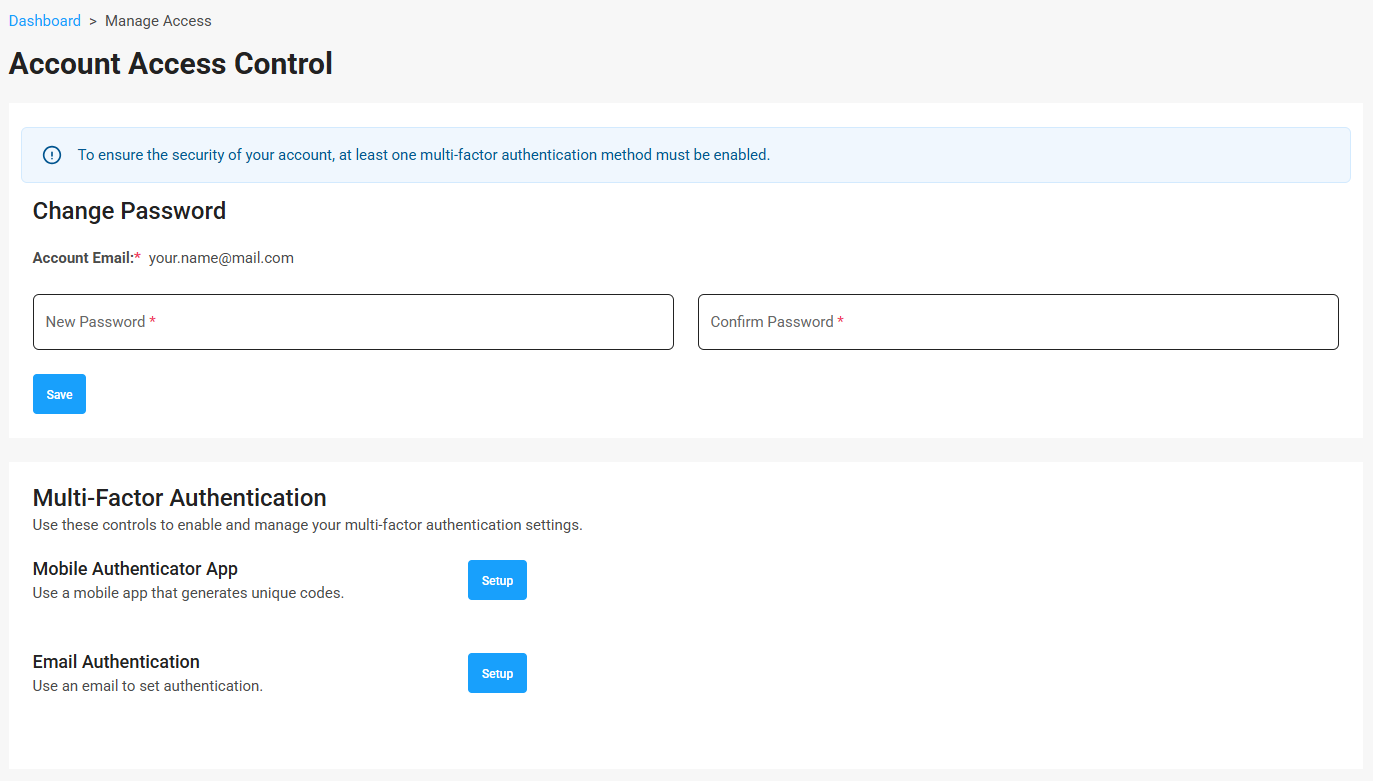
There are two options for Multi-Factor Authentication:
- Mobile Authenticator App
- Email-based authentication
If you do not set up your own MFA, your account will default to email-based authentication using your account email address.
Setup Authenticator App
To use a mobile authenticator app, click Setup.
You will be prompted to scan a QR code using your preferred authentication app.
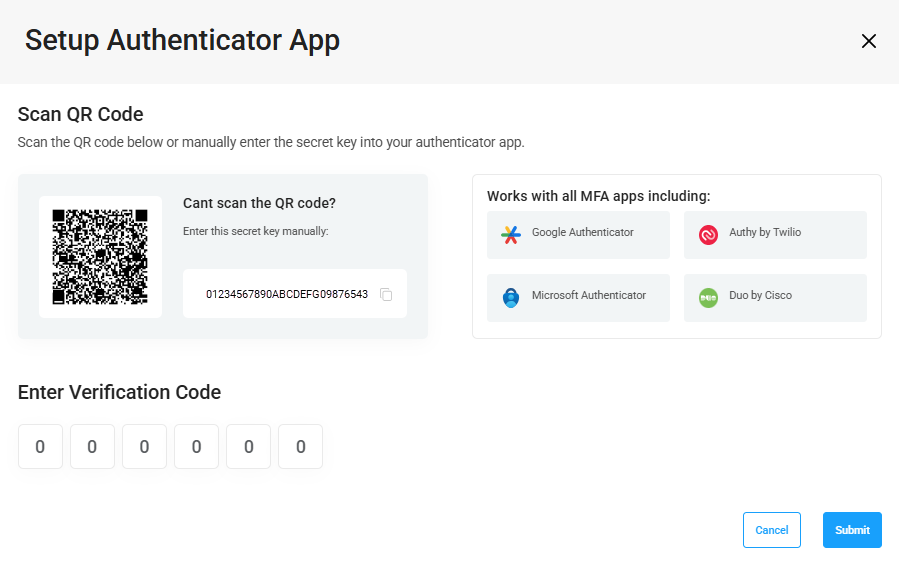
Once the account is added to your authentication app of choice, enter the 6-digit verification code displayed in the app and click Submit. Your multi-factor authentication should now be active.
Email Authentication
To use email-based authentication, click setup.
Enter your preferred email address. It does not have to be the same as your account email.
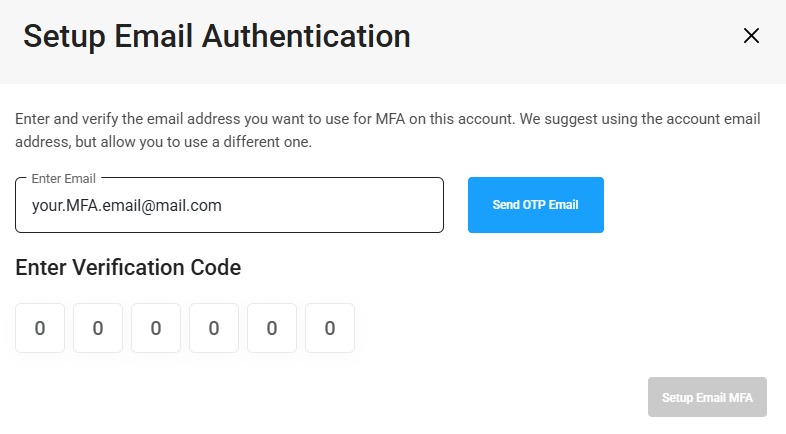
Check your inbox for the OTP email sent by support@certpanel.com.
Enter the 6-digit verification code and click Setup Email MFA.
How to Remove Multi-Factor Authentication
If you have setup a custom MFA Device or email address, you can remove it. If you remove all MFA devices/email addresses, you will be required to authenticate your account email address when you login.
We recommend that you only remove or reset your MFA settings if you are able to authenticate your account email address, and need to setup a different email address or device.
There are two ways to remove or reset your custom MFA settings.
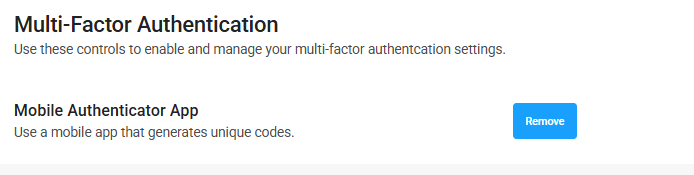
If you are currently logged into the account, go to your Account Security page. Under Multi-Factor Authentication, click Remove.
If you are unable to login to the account, you can reset MFA on the login page.
You will be required to complete verification with your account email address to prove you are authorized to remove the authentication device.
From the main website home page, click Login on the top right.
On the login page, enter your current account credentials. When prompted to enter your MFA code, click Reset MFA.
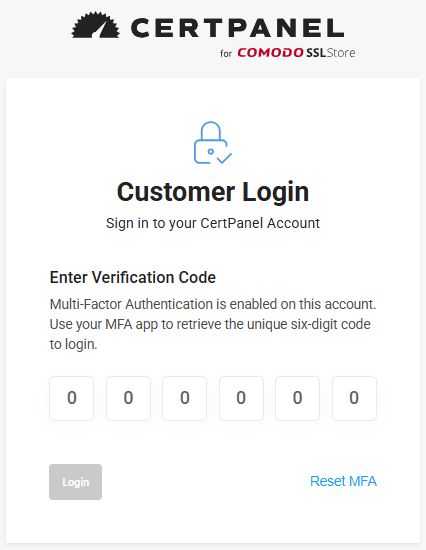
Click Send OTP Email to begin the verification process.
Check your account email inbox for the one-time password sent by support@certpanel.com.
Finally, enter the 6-digit code and click Reset MFA & Login.
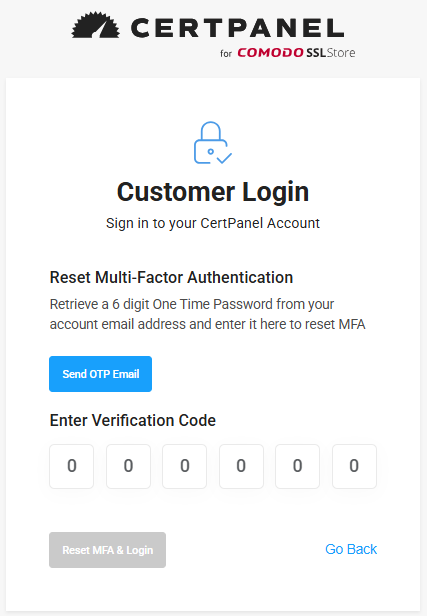
Your multi-factor authentication device will be removed, and you will be logged in. You can add a new MFA device on the Account Security page. If you don't add a new MFA device or email address, you will be required to authenticate your account email when you login again.