
Before your SSL certificate can be issued, you must prove that you control the domain(s) that you want the certificate to secure. This process is called Domain Validation (DV) or domain control verification (DCV).
Because every SSL request requires domain validation, it is the number one reason for certificate issuance delays.
There are several methods you can use to complete DCV, and each method comes with its own set of potential problems.
We'll dig more into each method in this guide, but first let's take a look at how you can set yourself up for DCV success during the certificate enrollment step.
Certificate Enrollment Options
There are a few steps during certificate enrollment that can affect the domain validation process. Before you submit your certificate request, you should double-check that every option is set to your exact preference.
If you have already completed enrollment, our support team may be able to help you change a few settings and complete domain validation.
Specify Domain Coverage - include "www" or not
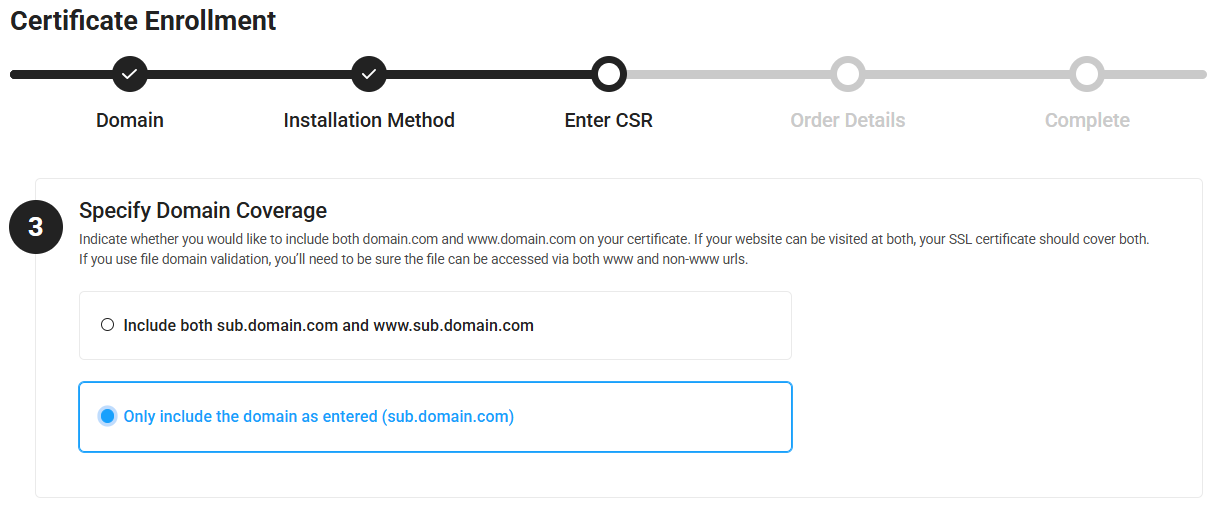
For a single-domain, non-wildcard SSL certificate, you have the option to include both www.domain.com and domain.com on your certificate. This option appears immediately after you upload your CSR (Step 3 - Specify Domain Coverage).
(Note: on a multi-domain SSL, you must manually add extra www or non-www domains as SANs.)
When the requested domain is a one-level base domain, such as domain.com, most users need the certificate to include www.domain.com and domain.com. The option to include both names is turned on by default when you enroll for a single-domain, non wildcard SSL certificate.
If you're requesting the certificate for a sub-domain, like sub.domain.com, then leaving the default option checked will add www.sub.domain.com to the request. If that domain doesn't exist, or cannot be validated, it will prevent the certificate from getting issued.
Here's what we recommend:
- If your CSR is for a base domain (like domain.com) check Include both domain.com and www.domain.com
- Keep it checked if your CSR domain is www.domain.com, and you'll get the base domain.com added instead
- If your CSR is for a sub-domain (like sub.domain.com) check Only include the domain as entered
I already completed enrollment
If you have already completed enrollment, our support team may be able to remove any unwanted www sub-domains from the order.
Advanced Configurations - Domain Validation Scope
The domain validation "scope" defines what part of the domain name must be approved to issue the certificate. The scope is not really a factor when the certificate only covers a one-level base domain, like domain.com.
If you're requesting SSL for a sub-domain, then you may want to adjust the validation scope to the level of the domain that you control.
A few important things about domain scope:
- Changing the domain scope does not change what domains are included on the certificate
- File-based validation method does not allow changing the scope - ALL exact domains must be validated individually
Domain Scope for Validation Options
During enrollment, you can adjust the Domain Validation Scope under the Advanced Configurations on the Order Details page. The default option is Base Domain.
If you only have control over the exact sub-domain as entered in your CSR, you should change the scope to FQDN before completing enrollment.
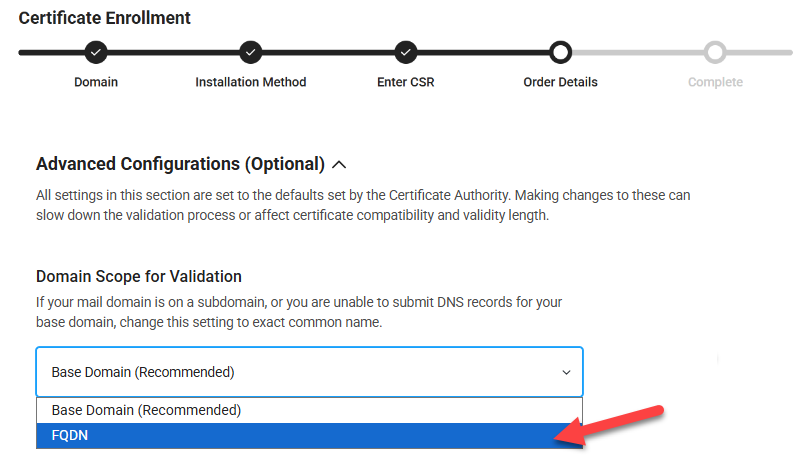
- Base Domain (recommended) = I will receive email or create DNS record on the lowest level of the domain, e.g. domain.com
- FQDN = I will receive email or create DNS record on the EXACT domain as entered, e.g. sub.domain.com (the Fully-Qualified Domain Name)
- Some domains require setting the scope to FQDN to complete enrollment (often due to Public Suffix List restrictions)
Multiple levels of sub-domains
Domain scope gets trickier when your domain has several tiers, like sub1.sub2.sub3.domain.com. Our options are limited to either the base domain (domain.com) or the exact domain (sub1.sub2.sub3.domain.com).
In this case, if you need to set the domain scope to a sub-domain in the middle of the name, you may need to contact our support team.
I already completed enrollment
If you already submitted your order without changing the Domain Validation Scope, your DCV instructions were generated for the base-level domain. If requested, your domain approval emails were sent to the approved aliases @domain.com.
After enrollment, our support team may be able to change the validation scope for email or DNS-based validation methods.
Post-Enrollment DCV Troubleshooting
As soon as you submit the certificate enrollment form, the instructions for domain validated are generated, and any requested emails are sent.
The exact instructions for your chosen DCV method are displayed on your CertPanel order dashboard. There, you can change the validation method if you need to approve your domain a different way.
If there is anything wrong with the domains listed in the DCV instructions, please ask our support team for help.
Check Your Work (DNS and File Methods)
Once you have created the DNS record or uploaded the authentication file on your server, you can check your work to make sure everything looks good.
DNS Checkers
Use an online DNS record checker to search for your domain validation DNS record. Sites like WhatsMyDNS, MxToolbox, and DNSChecker are all fairly easy to use.
Simply input your domain name into the search field, select the record type (usually TXT for DigiCert SSL), and hit search. If you see the record you created, you did it correctly. (If your SSL doesn't get issued then, that means there might be another problem at hand - keep reading this guide!)
The TXT record doesn't show up
If the TXT record isn't found, there could be a couple issues at play.
First, the record may just need more time to fully propagate online. Many DNS providers can get records online almost instantly, but in some cases it can take a few minutes, a few hours, or even a few days.
If the record still doesn't appear 24-48 hours after it's been created, check your DNS zone for issues with the record values (such as typos or other conflicting records).
TXT value doesn't match
If a TXT record shows up, but doesn't exactly match the "random value" generated in your domain validation instructions, double-check that the record you created includes the correct value.
Again, it may just be that the new record needs more time to show up. If you suspect it's just not working as it should be, you may need to troubleshoot with your DNS manager or hosting provider.
Duplicated domain name in the record
Some DNS providers will automatically add your domain name to the end of your record without telling you. If that happens, your record could end up misconfigured with extra values.
To check, use a DNS checker to lookup TXT records on yourdomain.com.yourdomain.com. If you find the record you made, you will need to manually adjust the record in your DNS zone.
The easy fix should be to re-create the record and substitute the domain name value with the @ symbol. However, we recommend checking with your DNS provider to be sure of the correct record format.
File-based validation: Check file location from another network
File-based domain validation always requires a specific file path, like this:
http(s)://exactdomain.com/.well-known/pki-authentication/fileauth.txt
The file itself (named fileauth.txt in this example) contains a "random value" generated by the Certificate Authority.
You can visit the URL of your uploaded authentication file in a web browser. On the file page, you should see only the plain text code that was embedded in your authentication file.
To make sure the file is accessible from any location, try visiting the file URL from a different network than the one hosting your web server.
If you can only access the file from your own network, but get errors on different networks, you may need to troubleshoot your server to allow global access to the file location.
Common server errors
These are the most common error codes you might get if your authentication file cannot be accessed. Check with your hosting provider or server system admin to troubleshoot and resolve these errors.
- 403 - you do not have permission to access the file location (and neither does the CA).
- 404 - the file location does not exist or cannot be found on the server.
- 500 - unexpected issue, such as server timeout, cache/cookie problem, incorrect file permissions, or various other server errors.
File location automatically re-directs to another URL
The authentication file must be found on the exact URL specified in your domain validation instructions. That means that the file page should NOT automatically re-direct to a different URL.
Check your server settings and make sure the authentication file URL does not transfer visitors to a completely different part of the website.
File-based validation: Microsoft servers won't create the .well-known folder
Sometimes Microsoft-based servers refuse to create a folder named .well-known, which is mandatory for file-based domain validation.
Usually the simple fix is to create the folder with another dot (.) at the end: .well-known.
The server should then allow the folder to be created, but will ignore the extra dot and correctly name the folder.
Other Common Domain Validation Issues
Domain Approval Email doesn't show up
By default, your domain approval email is sent to the following pre-approved "alias" addresses:
- admin@yourdomain.com
- administrator@yourdomain.com
- hostmaster@yourdomain.com
- postmaster@yourdomain.com
- webmaster@yourdomain.com
The email may not be sent to any random address or WHOIS registrant email. You must control at least one of the above aliases to complete domain approval by email.
You may also set up your mail server to forward from the alias emails to another existing address.
DCV email goes to junk or quarantine
Domain approval emails often end up in the junk folder, and are sometimes even outright blocked by your mail server security settings. If you don't see the email in your inbox shortly after submitting your order, check any junk/spam or quarantine areas on your mail server.
DigiCert typically sends the approval email from a no-reply address. The sending domain depends on the SSL certificate brand.
You may need to whitelist these addresses and have the domain approval email sent one more time:
- RapidSSL: no-reply@rapidssl.com
- GeoTrust: no-reply@geotrust.com
- Thawte: no-reply@thawte.com
- DigiCert: no-reply@digitalcertvalidation.com
DCV email sent to wrong domain scope
By default, the domain approval emails are sent to all possible aliases on the base domain, like admin@domain.com.
If you're requesting SSL for a sub-domain, and you need the email to go to aliases@sub.domain.com, you should change the domain scope during enrollment to "FQDN."
When your certificate covers multiple levels of sub-domains (sub1.sub2.sub3.domain.com, for example) then it gets a little tricky sending the domain approval email to the correct address. If you're not receiving the email in the right place, our support team may be able to help adjust the domain scope.
CAA Records
Certificate Authority Authorization (CAA) records are DNS records that specify which Certificate Authorities are authorized to issue SSL certificates to your domain.
No CAA records = any Certificate Authority can issue SSL to your domain.
If you have a CAA record for one specific CA, then no other CAs can issue SSL to you. In this case you can either add another record to allow another CA, or simply delete all CAA records if possible.
Check Your CAA Records
Use an online DNS checker like WhatsMyDNS or DNSChecker to locate CAA records for your domain name. You may also need to check any sub-domains that are included on your certificate request.
If the checker returns no results, your domain has an empty CAA record. Any CA should be able to issue SSL for it.
If there are any CAA results, only those CAs can issue SSL for your domain. If DigiCert is not included, you should either add a new record for them, or delete all CAA records (if you can).
How to create a CAA record for DigiCert
- In your DNS record manager, create a new CAA type record.
- Host name: your domain or @
- TTL: lowest possible (typicaly 30 min)
- Data value: 0 issue "digicert.com"
You may need to check with your DNS provider to confirm which field needs which data.
When the record is created, use a DNS checker tool to locate and verify it. You should find a result like this:
yourdomain CAA 0 issue "digicert.com"
Inherited CAA Records
If you point your domain to a third-party service provider via CNAME, then your domain may inherit CAA records setup by that provider. Inherited CAA records may not show up in your domain's DNS zone.
Please check with your service provider to confirm if they enforce any CAA records that might affect your domain.
Multi-Perspective Issuance Corroboration (MPIC)
From 2026 onward, Certificate Authorities must use multiple remote network perspectives to corroborate and verify domain validation resources, including DNS records, authentication files, and CAA records. This process is known as multi-perspective issuance corroboration, or MPIC, and it significantly reduces the risk of any unauthorized parties obtaining SSL for your domain.
Corroboration means that all of the CA's global network perspectives can find and agree upon the exact same data values hosted on your server. For MPIC to work, the domain validation resources on your server must be globally accessible and identical.
MPIC may fail if you restrict access to your server by geographical region or IP address. If the CA cannot complete their required MPIC checks, they cannot issue your SSL certificate.
DigiCert provides a list of IP addresses and UserAgents that can be whitelisted on your server to allow MPIC checks without disabling security restrictions. Check it out here: DigiCert Using MPIC to Verify Domain Control
DNSSEC Validation
Domain Name System Security Extensions (DNSSEC) is an optional security protocol that signs or authenticates the data contained in your DNS resources.
If DNSSEC is present, a Certificate Authority must validate it during domain control verification checks.
If DNSSEC is present and misconfigured, the CA cannot validate it, and thus cannot issue your SSL certificate.
You must troubleshoot DNSSEC configurations with your DNS manager or hosting provider.
Read more: DigiCert Validating DNSSEC when Verifying Domain Control and Performing CAA Checks